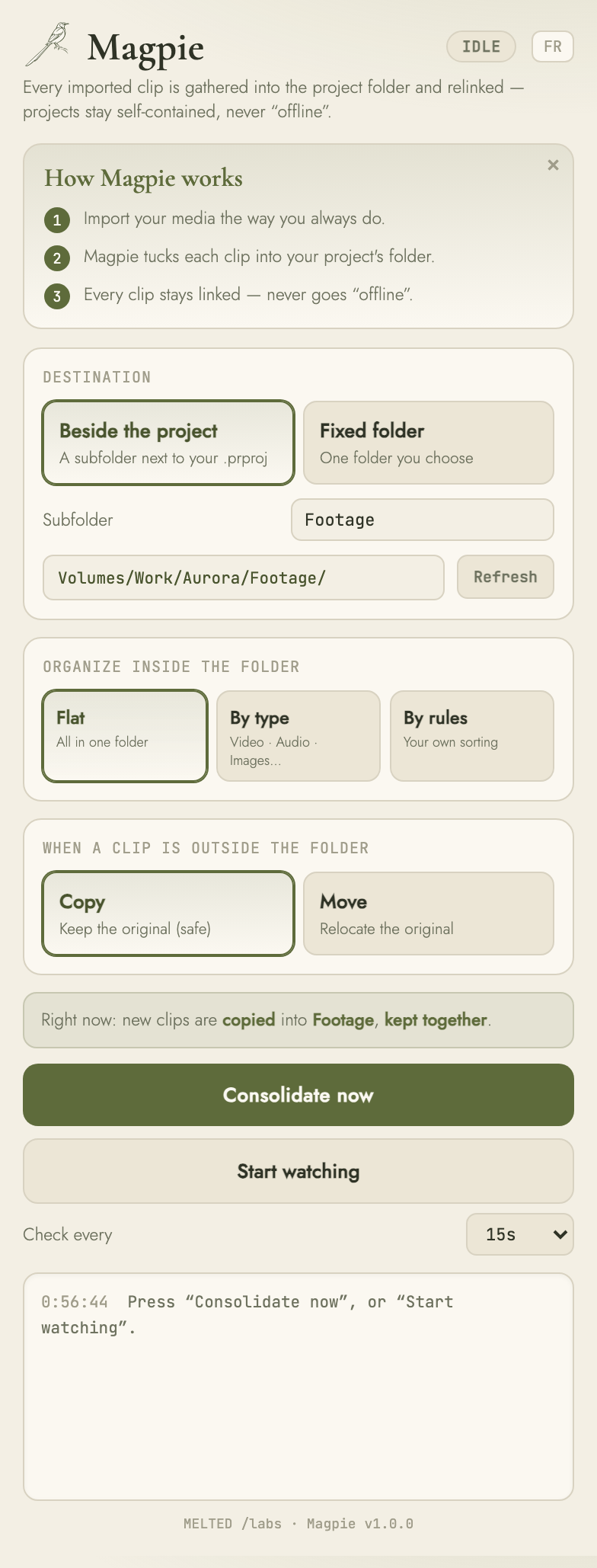

It gathers every clip into your project's nest and relinks it on the spot. Open any project, on any drive — and nothing is ever offline again.
Media scattered across drives, downloads and stray folders. Twenty minutes of hunting and relinking before you can even press play. Magpie quietly makes that disappear — so the work is always ready when you are.
Import the way you always do. No new habits, no folders to prepare first.
Every clip is filed into the project's source folder — right beside the project, or a nest you choose.
The clip is re-pointed the instant it lands. Your timeline never goes offline — not once.
Choose Copy and your originals stay untouched. Choose Move and you're still protected — because Magpie never yanks a file out from under your project. A Move actually happens in this order:
The clip is duplicated into the project's nest first — the original is still right there.
Premiere is re-pointed to the new file, and that relink is confirmed — before anything is removed.
Only once the relink succeeds. If Premiere is still using the file, Magpie waits and retries.
Your clip is online the entire time. No red “Media Offline” screen — ever.
Gather media right beside your .prproj, or into one fixed folder you pick.
Drop everything in flat, sort it by type (Video · Audio · Images), or write your own rules — .wav named “Musicbed” → Music.
Copy keeps your originals — the safe default. Move tidies as you go.
Run it on demand, or let Magpie watch quietly and gather new clips the moment they're imported.
Every gathered clip is re-pointed live, with a clear log of what moved — your timeline never goes offline.
Keep your originals, or tidy as you go. Copy is the default — Magpie is never destructive.
Gather media right next to your project file, or point everything to one folder you choose.
Every frame in a sequence follows its clip — nothing left behind, nothing broken.
It runs quietly in the background, gathering new media as it arrives — you never stop to think about it.
A file held by Premiere simply waits its turn and retries. Nothing is overwritten, nothing disappears.
Built in, both languages — switch with a click.
“It gathers every clip into the nest — so the project is always whole.”
One-time purchase — no subscription. On aescripts and Adobe Exchange.
Only if you ask it to. Copy is the default — your originals stay put. And even on Move, the clip is copied and relinked first; the original is removed only once that relink is confirmed — so nothing ever goes offline.
No. Open any project, hit Consolidate, and your clips are gathered and relinked in place. Nothing is ever left offline.
The whole sequence follows its clip — every frame travels together, nothing is left behind.
Your choice. Keep everything flat, sort automatically by type (Video / Audio / Images / Graphics), or write your own rules — e.g. “.mov whose name contains drone → B-Roll/Drone”, with an optional rename. The relink follows wherever a clip lands.
A clip Premiere is holding simply waits its turn and retries on the next pass. Nothing is overwritten, nothing is lost — and the log tells you.
Premiere Pro 2019 through 2026. A native build for the newest releases is on the way.
Both. Magpie runs wherever Premiere Pro does.
It works with local and networked media, and inside Productions — anywhere your clips live.
No. Magpie is a one-time purchase with free updates within v1 — and a 7-day trial before you decide.
A real person reads every message. Questions before buying, a hand setting it up, or an odd project — just reach out.